


Blog
How to Set Up a Smart Plug with Alexa or Google Home

Setting up a smart plug takes about five minutes. The steps depend on the kind of plug you have, so find yours below and follow along.
- Your phone, with Bluetooth on
- Your 2.4 GHz Wi-Fi name and password
- The Alexa or Google Home app
- The plug’s own app, for Kasa or Govee plugs
Matter plug: add it straight to Alexa or Google
If your plug has a Matter logo, you don’t need the maker’s app. Have the QR code on the plug or in the manual ready.
In the Alexa app
- Open Devices, tap +Choose Add Device, then Matter.
- Scan the QR codeNo code? Tap Try Numeric Code Instead.
- Pick your Wi-FiThen name the plug and choose a room.
In the Google Home app
- Tap Devices, then + AddChoose Matter-enabled device.
- Scan the QR codeOr tap Set up without QR code.
- Choose a room and nameThe plug appears in your Home app.
A Matter code works once. To add the same plug to a second app, generate a new pairing code from the first app and use it within a few minutes.
Kasa plug: set up in Kasa, then link
- Set it up in the Kasa appTap + and follow the prompts to join your 2.4 GHz Wi-Fi.
- Link to AlexaAlexa app › Devices › + › Add Device › Kasa Smart › Enable to Use, then sign in.
- Or link to GoogleGoogle Home app › + › Set up device › Works with Google, search TP-Link Kasa and sign in.
- Assign a roomNow say “Alexa, turn on the lamp” or “Hey Google, turn on the lamp”.
Amazon Smart Plug: Alexa only
- Plug it inWith Frustration-Free Setup it may appear in the Alexa app on its own. Check the Devices tab.
- If not, add it manuallyAlexa app › Devices › + › Add Device, then scan the code on the plug or manual (not the box barcode).
Plug won’t connect? Try these
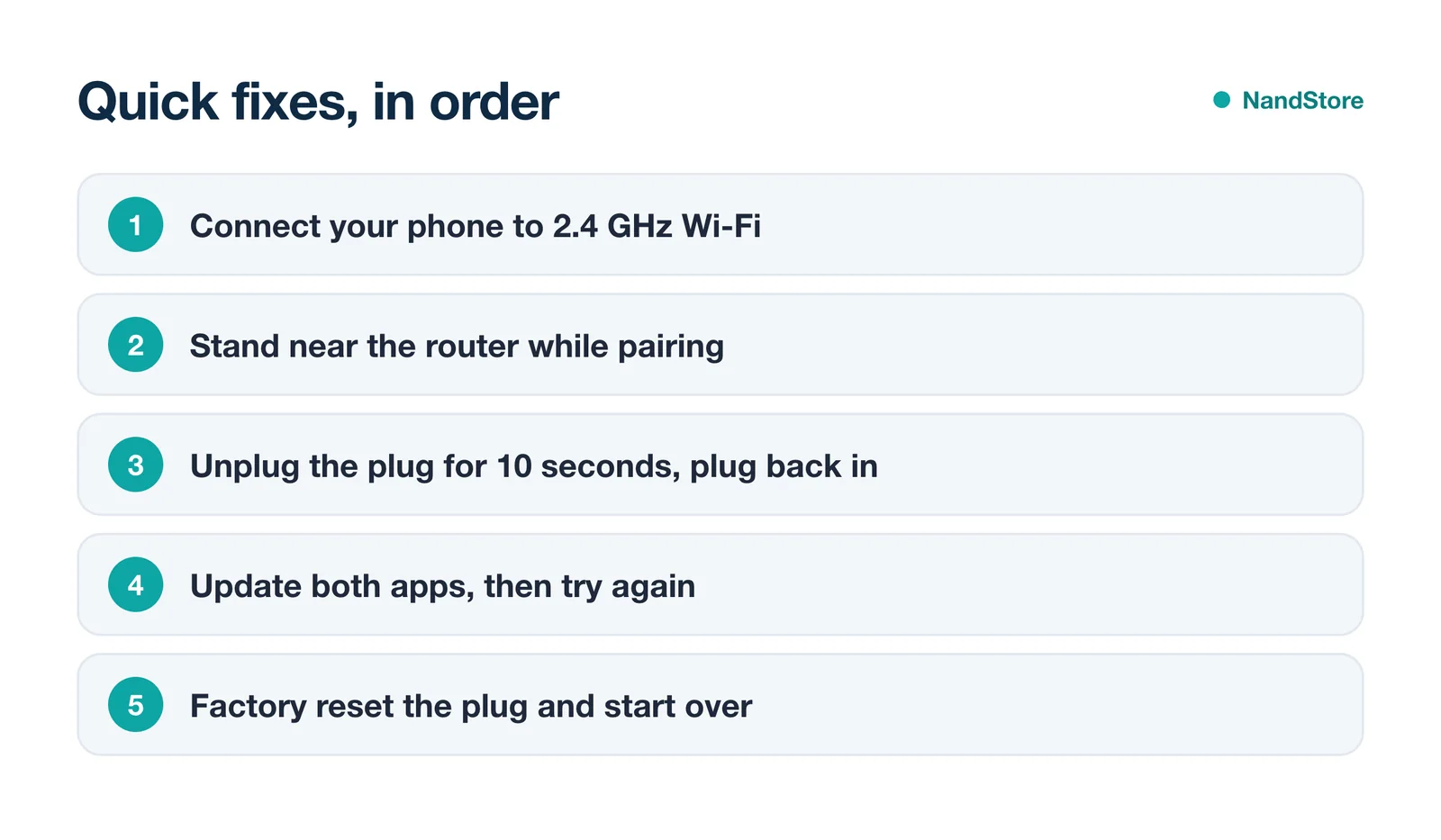
Most failures are a Wi-Fi band problem. Smart plugs use 2.4 GHz, so if your router merges both bands under one name, temporarily split them in the router settings.
Hold the button about 5 seconds for a soft reset (keeps settings). Hold about 10 seconds, until the light blinks amber quickly, to factory reset.
FAQ
Do I need the plug maker’s app?
Not for Matter plugs. Kasa and Govee plugs that aren’t Matter need their own app first, then you link it to Alexa or Google.
Why can’t Alexa find my plug?
Say “Alexa, discover my devices”. If that fails, disable and re-enable the brand’s skill, or reset the plug.
Can one plug work with Alexa and Google at the same time?
Yes. Matter plugs can join several apps, and Kasa plugs can be linked to both Alexa and Google.
Plug is working? Try a schedule: lamp on at sunset, off at bedtime. Still choosing a plug? See our best smart plugs guide.


